
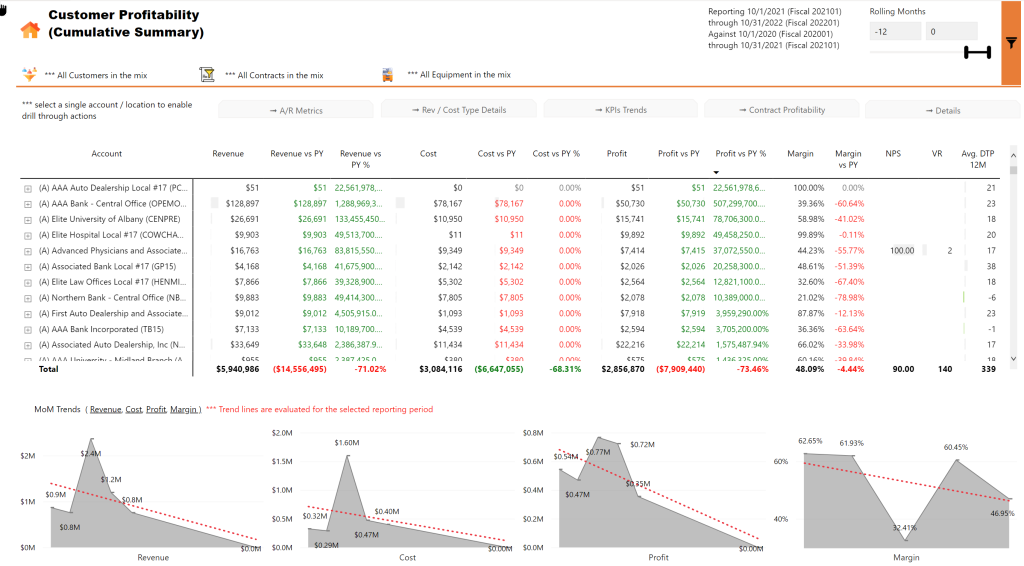
Introduction: Why Power BI is a Game-Changer for Financial Bloggers
In the fast-paced world of finance, data reigns supreme. Financial bloggers face the challenge of interpreting complex datasets—stock market trends, company financial statements, or economic forecasts—and presenting them in a way that’s accurate, engaging, and accessible. Spreadsheets, while powerful, often fall short in delivering the dynamic, interactive experience modern audiences crave. This is where Microsoft Power BI steps in, offering a robust platform to transform raw data into compelling visual stories.
Power BI is a business intelligence tool that empowers financial bloggers to move beyond static tables and charts. It enables you to connect to diverse data sources, perform advanced calculations, and create interactive dashboards that allow readers to explore data on their terms. Whether you’re analyzing quarterly earnings or forecasting market trends, Power BI can elevate your content, making it more insightful and appealing to young adults in the business, finance, or trading industries.
This comprehensive guide explores essential Power BI hacks tailored for financial bloggers. From streamlining data import and cleaning to mastering calculations with DAX, creating stunning visualizations, and embedding interactive reports in your blog, these tips will help you captivate your audience and establish yourself as a thought leader in financial content creation.
Hack 1: Efficient Data Import and Cleaning
The foundation of any impactful analysis is clean, well-structured data. Power BI’s Power Query Editor is a powerful tool for importing and transforming data from various sources, ensuring your financial insights are built on a solid base.
Connecting to Data Sources
Power BI supports a wide range of data sources, including:
- Excel spreadsheets
- CSV and text files
- SQL databases
- Web APIs
- Cloud services like Azure or Google Analytics
To import data, click “Get Data” in the Home tab of Power BI Desktop and select your source. For financial bloggers, common sources include Excel files with financial statements or CSV files with stock price data. For example, you might import a CSV file containing daily stock prices from Yahoo Finance.
Transforming Data with Power Query
Once imported, data often requires cleaning and transformation. Power Query offers a user-friendly interface for tasks like:
- Removing duplicates: Eliminate redundant records to avoid skewed analysis.
- Handling missing values: Remove rows with missing data or impute values (e.g., using averages).
- Changing data types: Convert text-based dates to date formats or ensure numerical columns are recognized as numbers.
- Splitting columns: Separate combined data, such as splitting a “Full Name” column into “First Name” and “Last Name.”
- Merging queries: Combine data from multiple sources based on common keys, like merging stock prices with company financials.
For instance, if your dataset includes a column with currency values prefixed by “$”, use “Replace Values” to remove the symbol and then set the column type to currency. Similarly, use “Remove Rows” to eliminate blank rows that could distort your analysis.
Best Practices
- Plan Ahead: Understand your analysis goals to guide your transformations.
- Document Steps: Power Query records each transformation, allowing you to review or modify them later for reproducibility.
- Use Parameters: Create dynamic queries, such as filtering data by a specific date range, to make your workflow flexible.
By mastering data import and cleaning, you ensure your analyses are accurate and reliable, setting the stage for insightful financial content.
Hack 2: Mastering DAX for Financial Calculations
Data Analysis Expressions (DAX) is Power BI’s formula language, enabling you to create custom calculations that add depth to your financial analyses. For bloggers, DAX is essential for computing metrics like profit margins, return on investment (ROI), or year-over-year growth.
Understanding Measures and Calculated Columns
DAX supports two types of calculations:
- Calculated Columns: Computed row by row and added to tables, useful for creating new data points (e.g., calculating profit per transaction).
- Measures: Aggregate data across multiple rows, responding dynamically to filters and slicers (e.g., total revenue across a selected period).
Measures are particularly valuable for financial blogging, as they allow you to create key performance indicators (KPIs) that adapt to user interactions in your reports.
Key DAX Functions for Finance
Here are some DAX functions useful for financial calculations:
- SUMX: Sums an expression evaluated for each row in a table.
- AVERAGEX: Calculates the average of an expression across rows.
- CALCULATE: Modifies the filter context to evaluate an expression, enabling flexible calculations.
- DATEADD: Shifts dates for time-based calculations, like comparing this year’s revenue to last year’s.
- RELATED: Retrieves values from related tables, useful for combining datasets.
Example: Calculating Year-Over-Year Growth
To calculate year-over-year revenue growth, create a measure like this:
YoY Growth = DIVIDE( [Total Revenue] - CALCULATE([Total Revenue], DATEADD('Date'[Date], -1, YEAR)), CALCULATE([Total Revenue], DATEADD('Date'[Date], -1, YEAR)) )
This measure compares the current year’s total revenue (assumed to be defined as [Total Revenue]) with the previous year’s, expressing the difference as a percentage.
Example: Calculating ROI
For a dataset with investment data, calculate ROI with:
ROI = DIVIDE( SUM('Investments'[Current Value]) - SUM('Investments'[Initial Investment]), SUM('Investments'[Initial Investment]) )
This measure computes the total ROI across all investments, providing a clear metric for your readers.
Advanced DAX: Time Intelligence
Time intelligence functions are crucial for financial analysis. For example, to calculate revenue for the previous month:
Revenue Previous Month = CALCULATE( [Total Revenue], DATEADD('Date'[Date], -1, MONTH) )
Then, compute month-over-month growth:
MoM Growth = DIVIDE( [Total Revenue] - [Revenue Previous Month], [Revenue Previous Month] )
These calculations enable you to highlight trends and patterns, making your blog content more analytical and engaging.
Hack 3: Creating Compelling Visualizations
Visualizations are the heart of your Power BI reports, transforming raw data into intuitive insights. Choosing the right visual and customizing it effectively can make your financial data accessible and engaging.
Choosing the Right Visual
Select visuals based on the data and message:
- Line Charts: Show trends over time, like stock prices or revenue growth.
- Bar/Column Charts: Compare categories, such as sales by region or product.
- Waterfall Charts: Visualize cumulative effects, ideal for profit and loss statements.
- Candlestick Charts: Display stock price movements, popular in trading blogs.
- Gauge Charts: Highlight performance against targets, like budget adherence.
For example, a waterfall chart can clearly show how revenue, expenses, and taxes contribute to net profit, making complex financial statements easier to understand.
Customizing Visuals
Enhance visuals with:
- Consistent Colors: Use a palette that aligns with your blog’s branding or highlights key data points.
- Labels and Titles: Add clear titles and data labels to explain the visual’s purpose.
- Tooltips: Provide additional context when users hover over data points, such as detailed figures or explanations.
Adding Interactivity
Power BI’s interactivity sets it apart. Use:
- Slicers: Allow readers to filter data, like selecting a specific year or company.
- Filters: Apply global or visual-level filters to focus on relevant data.
- Drill-Through: Enable users to dive into detailed views, such as clicking a company to see its financial breakdown.
For instance, in a report on company financials, include a slicer for fiscal years, letting readers explore data dynamically.
Best Practices
- Keep It Simple: Avoid clutter by focusing on key insights.
- Test Interactivity: Ensure slicers and filters work intuitively.
- Use Custom Visuals: Explore the Power BI Visuals Marketplace for specialized financial charts.
Effective visualizations make your financial blog posts more engaging, helping readers grasp complex data at a glance.
Hack 4: Embedding Power BI in Your Blog
To share your interactive Power BI reports with your audience, embed them directly into your blog posts. Power BI offers two main methods: “Publish to web” for public sharing and “Embed” for secure sharing.
Publish to Web
This method is ideal for bloggers wanting to share reports publicly. It’s simple but makes data accessible to anyone, so ensure the data isn’t confidential.
Steps:
- Open your report in Power BI Service.
- Go to File > Publish to web.
- Click “Create embed code” and confirm you understand the public access implications.
- Copy the HTML code and paste it into your blog post’s HTML editor.
Secure Embed
For controlled access, use the “Embed” option, which requires viewers to sign into Power BI with appropriate permissions.
Steps:
- Open your report in Power BI Service.
- Go to File > Embed report > Website or portal.
- Copy the secure embed code and paste it into your blog’s HTML.
- Ensure viewers have access to the report in Power BI Service.
Best Practices
- Test the Embed: Verify that the report displays correctly and all interactive features work.
- Mobile Responsiveness: Check that the report is viewable on mobile devices, as many readers use smartphones.
- Update Regularly: Set up scheduled refreshes in Power BI Service to keep embedded reports current.
Embedding interactive reports enhances your blog’s value, allowing readers to explore data themselves, which can increase engagement and time spent on your site.
Additional Hacks and Tips
To further elevate your Power BI skills, consider these advanced techniques:
Automate Data Refreshes
Set up scheduled refreshes in Power BI Service to keep your data current without manual updates. This is critical for financial data like stock prices or economic indicators that change frequently.
Use Bookmarks
Bookmarks save specific report views, enabling you to create guided tours or highlight key insights. For example, create a bookmark to focus on a specific company’s financials for a blog post.
Leverage Custom Visuals
The Power BI Visuals Marketplace offers specialized visuals, such as advanced financial charts or interactive maps, to enhance your reports.
Incorporate AI Features
Power BI’s AI capabilities, like Quick Insights and the Q&A visual, can uncover patterns or answer natural language questions about your data, adding depth to your analysis.
Optimize Performance
For large datasets, optimize your data model by:
- Reducing unnecessary columns and rows.
- Using aggregations to summarize data.
- Simplifying DAX calculations to improve report speed.
These hacks ensure your reports are both powerful and user-friendly, enhancing the reader experience.
Case Study: A Financial Blogger’s Success with Power BI
Consider the example of Dallas Salazar, a financial analyst and blogger featured on the Microsoft Power BI Blog. Salazar used Power BI to create interactive visualizations for his Seeking Alpha blog, leveraging tools like the SandDance visual to analyze deal flow and market opportunities. By embedding these visuals, he engaged readers with dynamic content, increasing subscriber interaction and establishing his firm as a data-driven leader. This demonstrates how Power BI can transform financial blogging, making complex data accessible and compelling.
Recommended Books and Resources
To deepen your Power BI and data visualization skills, explore these resources:
| Title | Author(s) | Description |
|---|---|---|
| Mastering Microsoft Power BI | Brett Powell | A comprehensive guide to Power BI, covering data modeling, analytics, and report design. Ideal for bloggers seeking advanced techniques. |
| The Definitive Guide to DAX | Marco Russo, Alberto Ferrari | Essential for mastering DAX, with practical examples for financial calculations. |
| Storytelling with Data | Cole Nussbaumer Knaflic | Teaches data visualization principles to communicate insights effectively, complementing Power BI skills. |
| Financial Modeling | Simon Benninga | A classic resource for financial analysis techniques, applicable to Power BI modeling. |
Online Resources:
- Microsoft Power BI Documentation: Official guides and tutorials.
- Power BI Community: Forums for troubleshooting and tips.
- DAX Guide: Detailed DAX function reference.
Conclusion
Power BI is a transformative tool for financial bloggers, enabling you to turn complex spreadsheet data into engaging, interactive stories that resonate with your audience. By mastering data import and cleaning, DAX calculations, visualizations, and embedding techniques, you can create content that informs and captivates young adults in the finance industry. The additional hacks—automation, bookmarks, custom visuals, AI features, and performance optimization—further enhance your ability to deliver high-quality content.
Continuous learning is key. Experiment with Power BI’s features, explore the recommended books and resources, and engage with the Power BI community to stay updated. With practice, you’ll transform your financial blogging from mere data presentation to insightful storytelling, establishing yourself as a trusted voice in the financial space.
Start your Power BI journey today with Power BI Desktop and watch your blog’s impact soar.