
Introduction
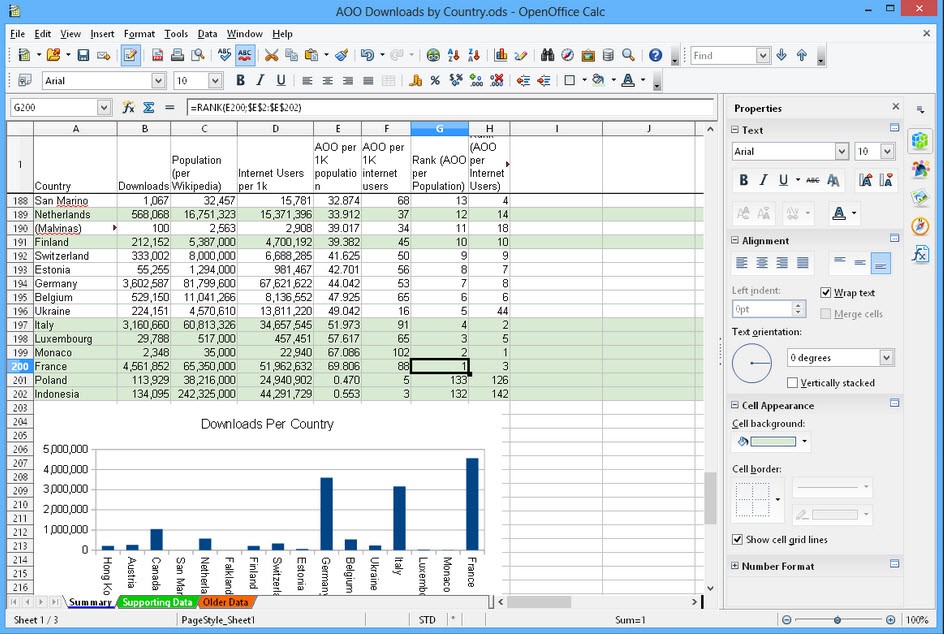
In today’s data-driven world, young professionals in finance, trading, and personal finance need tools that bridge affordability and power. OpenOffice Calc offers a free, open-source spreadsheet solution, while Power BI transforms raw data into actionable insights. But how do you make them work together? This 3,000+ word guide dives deep into integrating these tools, complete with tutorials, automation hacks, and resources to supercharge your analytics game.
Why Use Power BI with OpenOffice Spreadsheets?
- Cost Efficiency: OpenOffice is free, making it ideal for startups or budget-conscious individuals. Power BI’s free Desktop version pairs perfectly for advanced visualization.
- Flexibility: OpenOffice’s .ods files store financial data, but Power BI unlocks interactive dashboards and predictive analytics.
- Career Growth: Mastering both tools makes you a versatile asset in data-centric roles like financial analysis or trading.
Step 1: Preparing Your OpenOffice Spreadsheet
A. Structuring Data for Power BI
- Flat Tables: Organize data into tables with headers (e.g., “Date,” “Revenue,” “Expenses”) and avoid merged cells.
- Data Types: Format columns correctly (currency, dates) to ensure smooth Power BI imports.
- Named Ranges: Use
Ctrl+F3to define ranges like “MonthlySales” for easier referencing in Power BI.
B. Exporting to Excel (Temporary Workaround)
Power BI doesn’t natively support .ods files, so convert them to .xlsx:
- Manual Conversion: In OpenOffice, click
File > Save As > Excel 97–2003 (.xls). - Automation: Use Python scripts (see code snippet below) or free online converters like Zamzar.
import pandas as pd
data = pd.read_excel("financial_data.ods", engine="odf")
data.to_excel("financial_data.xlsx")
Step 2: Importing Data into Power BI
A. Direct Excel Integration
- Upload to Power BI Desktop:
- Open Power BI >
Home > Get Data > Excel> Select your .xlsx file. - Use Power Query to clean data (e.g., filter out discontinued products like “Montana”).
- Open Power BI >
- Advanced Transformations:
- Convert text to uppercase for consistency.
- Create DAX measures (e.g.,
Total Sales = SUM(Sheet1[Sales])).
B. Automating ODS Imports (Advanced)
For recurring .ods workflows, bypass Excel conversion:
- Extract ODS as ZIP:
- Rename
file.odstofile.zip, then unzip to accesscontent.xml.
- Rename
- Load XML into Power BI:
- Use Power Query’s
XMLconnector to parse structured data.
- Use Power Query’s
Step 3: Building Financial Dashboards
A. Key Visualizations for Finance
- Profit Trends: Use line charts with date hierarchies (Year > Month).
- Geographic Analysis: Map profits by country using bubble maps.
- Product Performance: Stacked bar charts comparing segments (e.g., “Small Business” vs. “Government”).
B. Interactive Slicers
- Add slicers for dates or regions to filter dashboards dynamically.
Step 4: Advanced Automation & AI Integration
A. Automate Reports with Power BI Service
- Publish dashboards to Power BI Service for team sharing.
- Schedule refreshes for OneDrive-stored Excel files.
B. AI-Powered Enhancements
- Python Scripts: Use libraries like
scikit-learnfor predictive analytics (e.g., sales forecasts). - Anomaly Detection: Power BI’s built-in AI identifies outliers in trading data.
Real-World Applications
- Personal Finance: Track expenses with OpenOffice and visualize savings trends in Power BI.
- Trading Portfolios: Analyze stock performance using Power BI’s real-time dashboards.
- Business Reporting: Automate monthly financial statements for stakeholders.
Recommended Books & Resources
- “Power BI For Dummies” by Ken Withee: Simplifies DAX and visualization.
- “The Psychology of Money” by Morgan Housel: Contextualizes financial data storytelling.
- “Automate the Boring Stuff with Python” by Al Sweigart: For scripting OpenOffice tasks.
Limitations & Troubleshooting
- ODS Compatibility: Power BI lacks native .ods support, requiring workarounds.
- Data Size: Power BI Desktop handles ≤1 GB files; optimize with aggregation.
- Refresh Errors: Ensure OneDrive sync is active for cloud-stored files.
Conclusion
Combining OpenOffice Calc with Power BI empowers young professionals to turn raw data into strategic insights without breaking the bank. By mastering conversions, DAX, and AI-driven automation, you’ll stay ahead in finance, trading, or personal budgeting. Start small—automate one report this week—and scale your skills from there.
References
- Power BI Community: ODS Conversion Workarounds
- Microsoft: Excel to Power BI Tutorial
- Power BI Data Import Guide
- AI-Driven Spreadsheet Automation
- Exporting Power BI to Excel
Engage Further: Share your first Power BI + OpenOffice project on LinkedIn using #DataHackers—we’d love to feature your work!