
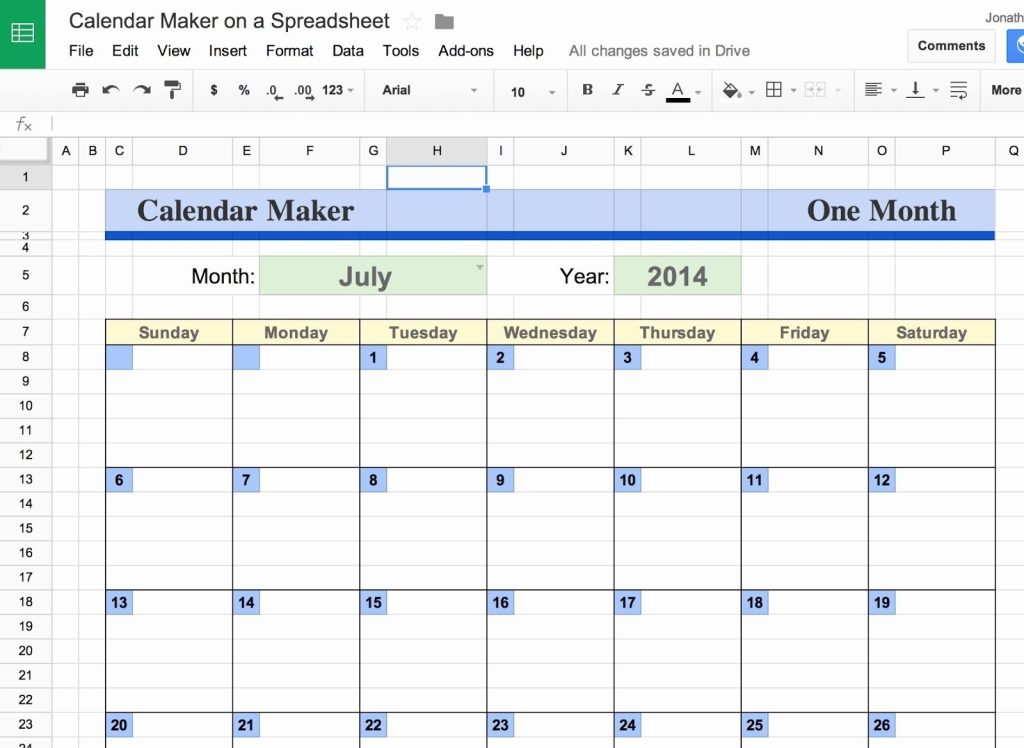
Hey there, young hustlers! If you’re diving into the world of finance, business, trading, or personal finance content creation—whether it’s for a blog, YouTube channel, or social media—you’ve probably felt the chaos of trying to keep it all together. One week you’re dropping three posts about crypto trends, the next you’re ghosting your audience because life got busy. Sound familiar? Don’t worry, we’ve got your back. Enter the dynamic content calendar—a game-changer that’ll help you stay organized, consistent, and on top of your content game. And the best part? We’re building it with Google Sheets, a free tool that’s as flexible as your trading strategy on a volatile day.
In this 3000+ word guide, we’ll walk you through every step to create a dynamic content calendar tailored for young adults like you who are passionate about finance and business. We’ll cover why it’s a must-have, how to set it up, and even throw in some pro tips to keep it running smoothly. Plus, we’ve got book recommendations and resources to level up your skills. Ready to master your content strategy? Let’s dive in!
Why You Need a Content Calendar in Finance and Business
Picture this: You’re a budding finance influencer. You’ve got killer ideas—think “Top 5 Budgeting Hacks for Gen Z” or “How to Spot the Next Big Stock”—but your posting schedule is all over the place. Your followers are confused, your SEO is tanking, and you’re stressing out. A content calendar fixes that. It’s like your personal assistant, keeping your content on track and your audience hooked.
In niches like finance, business, trading, and personal finance, timing is everything. Your readers or viewers want the latest market updates, trading tips, or economic insights—right when they need them. A content calendar helps you:
- Stay Consistent: Regular posts build trust and keep your audience coming back.
- Plan Ahead: No more scrambling to write about the Fed’s latest rate hike the night before.
- Boost SEO: Search engines love consistent, keyword-rich content.
- Track What Works: See which topics (like “Crypto 101”) resonate and double down.
For young professionals, mastering this tool is a power move. It’s not just about organization—it’s about building a brand that screams reliability in a fast-moving industry.
Benefits of Using Google Sheets for Your Content Calendar
Why Google Sheets? Because it’s free, flexible, and packed with features that make it perfect for a dynamic content calendar. Here’s why it’s your go-to:
- Accessibility: Cloud-based, so you can tweak your calendar from your phone at a coffee shop or your laptop during a late-night grind.
- Collaboration: Got a team? Multiple people can edit, comment, and brainstorm in real-time—perfect for small biz owners or trading groups.
- Customization: Add formulas, scripts, or niche-specific columns (think stock tickers or earnings dates) to make it your own.
- Zero Cost: No subscriptions, no fees—just a free tool that rivals paid apps.
It’s like having a Swiss Army knife for content planning, and it’s already in your Google account. Let’s put it to work.
Step-by-Step Guide to Creating a Dynamic Content Calendar in Google Sheets
Ready to build your content calendar? We’re breaking it down into five actionable steps. By the end, you’ll have a dynamic, finance-focused tool that keeps your content flowing like a well-timed trade. Let’s go!
Step 1: Setting Up Your Google Sheet
First things first—let’s get the foundation right.
- Open Google Sheets and click “+ New” to create a blank spreadsheet.
- Give it a name that vibes with your goals, like “2025 Finance Content Calendar” or “Trading Vlog Schedule.”
- Working with a crew? Hit the green “Share” button in the top-right corner, add their emails, and set permissions to “Edit” for full collab mode.
Pro tip: Freeze the top row (View > Freeze > 1 row) so your column headers stay visible as you scroll. Trust us, it’s a sanity-saver.
Step 2: Designing the Layout
Your calendar needs a structure that tracks everything—dates, topics, statuses, you name it. Here’s a killer starting lineup of columns:
- Publish Date: When your content goes live (e.g., “11/15/2025”).
- Content Type: Blog post, video, tweet, newsletter—whatever you’re creating.
- Title: Working title, like “Why Millennials Should Invest in ETFs.”
- Keywords: SEO gold—think “best ETFs 2025” or “personal finance tips.”
- Status: Where it’s at—Planned, In Progress, Published.
- Assigned To: Who’s on it—you, a teammate, or a freelancer.
- Notes: Extra deets, like “Link to research doc” or “Promote on X.”
Format it up: Bold your headers, adjust column widths, and maybe add some color to make it pop. (Insert screenshot of a basic Google Sheet layout here—if this were a blog, we’d show you!)
Step 3: Adding Dynamic Features
Here’s where the “dynamic” part kicks in. Google Sheets isn’t just a static table—it’s a living tool with formulas and automation.
- Auto Dates: In a cell (say A1), type =TODAY() to show today’s date. For future dates, use =A1+7 to jump a week, then drag down to fill.
- Status Colors: Highlight the Status column, go to Format > Conditional Formatting, and set rules:
- “Planned” = Yellow (custom formula: =$E1=”Planned”).
- “In Progress” = Blue (=$E1=”In Progress”).
- “Published” = Green (=$E1=”Published”).
- Deadline Alerts: Add a “Due Date” column. In a new column (e.g., “Alert”), use =IF(F1<TODAY(), “Overdue”, “On Track”) to flag late tasks.
Want to level up? Try Google Apps Script for next-tier automation—like email reminders. Here’s a quick taste:
- Go to Extensions > Apps Script.
function sendReminder() { var sheet = SpreadsheetApp.getActiveSheet(); var data = sheet.getDataRange().getValues(); for (var i = 1; i < data.length; i++) { if (data[i][5] < new Date() && data[i][4] != "Published") { MailApp.sendEmail("your@email.com", "Content Overdue", "Check row " + (i+1)); } } }- Set a trigger (e.g., daily) to run it. Boom—your calendar’s nagging you like a good friend.
Step 4: Customizing for Your Niche
Finance and business aren’t one-size-fits-all, so let’s tailor this baby:
- Market Events: Add a column for big dates—think “Q3 Earnings” or “Fed Meeting”—to sync content with the news cycle.
- Stock Tickers: Dropping a stock tip video? Include a column for symbols like “AAPL” or “TSLA.”
- Trading Strategies: For trading fans, track “Moving Averages” or “Candlestick Patterns” to tie content to specific techniques.
- Personal Finance Themes: Budgeting, debt payoff, investing—rotate these to keep your audience hooked.
Example: If you’re a trading YouTuber, your row might look like:
- Publish Date: 11/20/2025
- Content Type: Video
- Title: “How to Trade Tesla’s Earnings Report”
- Keywords: Tesla stock trading, earnings strategy
- Stock Ticker: TSLA
- Status: Planned
Step 5: Populating the Calendar
Time to fill it up with content ideas:
- Brainstorm: Jot down topics—e.g., “Crypto Crash Survival Guide” or “Side Hustles for College Grads.”
- Schedule Smart: Tie content to key dates (holidays, tax season, Black Friday) or trends (rate hikes, bull markets).
- Mix It Up: Balance long-form blogs with quick TikToks or Insta Reels to keep things fresh.
Start with a month’s worth—say, one blog, two videos, and four social posts. Drag formulas to auto-fill dates, and watch your plan take shape.
Maintaining and Updating Your Content Calendar
Building it is half the battle—keeping it alive is where the magic happens. Here’s how:
- Weekly Check-Ins: Spend 15 minutes every Sunday updating statuses and brainstorming new ideas.
- Team Syncs: If you’ve got collaborators, hop on a quick Zoom to align on priorities.
- Track Metrics: Add columns for “Views,” “Likes,” or “Shares” to see what’s hitting (e.g., that “Debt Snowball” post crushed it—plan more!).
Treat it like a budget: Review, adjust, and stick to it. A neglected calendar is like a forgotten stock pick—wasted potential.
Common Mistakes to Avoid
Even the best plans can flop if you trip over these:
- Overcomplicating: Too many columns or fancy formulas can bog you down. Keep it lean.
- Ghosting It: Skipping updates turns your calendar into a relic. Set reminders to stay on it.
- Ignoring Your Audience: If they’re loving trading tips but snoozing on budgeting, pivot fast.
Simplicity and flexibility are your friends here. Don’t let perfectionism derail you.
Case Study: FinanceFred’s Content Comeback
Meet Fred, a 25-year-old personal finance blogger. He used to post whenever inspiration hit—maybe a debt payoff guide one month, nothing the next. His traffic was flat, and his followers were dropping off. Then he built a dynamic content calendar in Google Sheets.
Fred’s setup:
- Columns: Publish Date, Content Type, Title, Keywords, Status, Notes, Financial Theme (e.g., Investing, Budgeting).
- Dynamic Features: Auto-colored statuses and a “Days Until Due” formula (=F1-TODAY()).
- Niche Twist: A “Seasonal Hook” column for timely posts (e.g., “Tax Tips” in April).
He planned a mix: weekly blogs, biweekly YouTube vids, daily X posts. Six months later? Traffic up 50%, engagement soaring, and Fred’s stress way down. A content calendar turned him from scattered to unstoppable.
Recommended Books and Resources
Want to dig deeper? These books and resources will sharpen your content and productivity game:
- Books:
- Content Inc. by Joe Pulizzi: Build a content-driven biz from scratch. Perfect for entrepreneurs.
- Deep Work by Cal Newport: Master focus to crush your calendar and workload.
- The Content Code by Mark W. Schaefer: Amplify your reach with smart strategies.
- Online Resources:
- HubSpot Blog: Free content marketing tips and templates.
- Google Sheets Tutorials: Level up your Sheets skills straight from the source.
Grab these, skim them, and watch your content strategy soar.
Conclusion: Your Turn to Shine
There you have it—a dynamic content calendar in Google Sheets, built from the ground up for young pros in finance, business, trading, and personal finance. It’s your ticket to staying organized, pumping out consistent content, and growing your audience like a well-timed investment. We’ve covered the why, the how, and the hacks to make it work for you.
So, what’s next? Open Google Sheets, follow these steps, and start planning. Whether you’re dropping trading tutorials or budgeting hacks, this tool will keep you ahead of the game. Your future self—and your followers—will thank you. Got questions or killer calendar tips? Share them on X—we’d love to hear how you’re making it your own!
References
- Content Camel – How to Build a Robust Content Calendar with Google Sheets
- FasterCapital – Google Sheets Templates for Business Planning and Financial Analysis
- Growthbar SEO – How to Create a Content Calendar in 7 Steps
- Megan Minns King – How to Create a Content Calendar Using Google Sheets
- Pulizzi, Joe. Content Inc. McGraw-Hill Education, 2015.
- Newport, Cal. Deep Work. Grand Central Publishing, 2016.
- Schaefer, Mark W. The Content Code. Schaefer Marketing Solutions, 2015.