
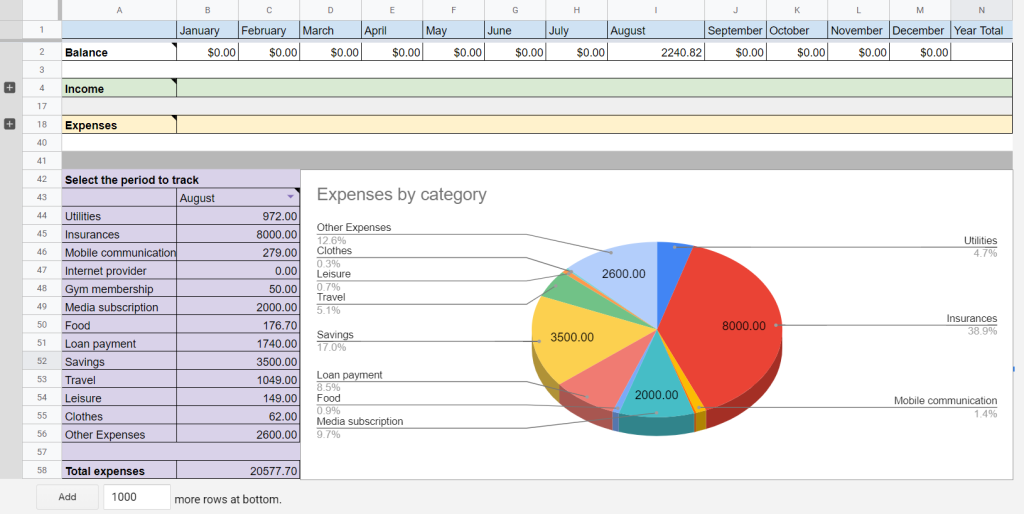
Tracking business expenses is the backbone of financial health for startups. Yet, 60% of small businesses struggle with disorganized records, leading to missed tax deductions and cash flow issues. Enter Google Sheets: a free, flexible, and collaborative tool that can revolutionize how you manage expenses.
This guide dives deep into setting up expense trackers, leveraging templates, automating workflows, and avoiding pitfalls—all tailored for young entrepreneurs in finance, trading, or personal finance. Let’s get started!
Why Track Business Expenses?
1. Tax Compliance & Savings
The IRS requires businesses to keep expense records for at least three years. Proper tracking ensures you maximize deductions (e.g., home office, mileage) and avoid audits. For example, Shoeboxed’s tax-categorized receipts can save hours during tax season.
2. Cash Flow Management
Startups with clear expense insights can identify wasteful spending, negotiate vendor rates, and allocate funds strategically. FreshBooks notes that 30% of businesses improve cash flow within three months of systematizing expenses.
3. Investor Confidence
Organized financials attract investors. A Smartsheet survey found that 78% of venture capitalists prioritize transparent expense reporting when evaluating startups.
Setting Up Google Sheets for Expense Tracking
Step 1: Choose Your Template
Google Sheets offers built-in templates under File > New > Template Gallery. For startups, these three stand out:
- Smartsheet’s Business Expense Tracker: Pre-built categories for travel, meals, and payroll.
- Rob Pegoraro’s Freelancer Template: Aligns with IRS Schedule C tax forms, ideal for solopreneurs.
- ClickUp’s Monthly Budget Template: Visual dashboards for tracking fixed vs. variable costs.
Pro Tip: Use File > Make a Copy to save templates to your Google Drive without altering the original.
Top 5 Free Google Sheets Expense Templates
- Smartsheet’s Annual Business Tracker
- Best For: Month-by-month tracking with YTD summaries.
- Features: Auto-calculates totals, separates operating vs. payroll expenses.
- Deborah Ho’s Weekly/Monthly Tracker
- Best For: Visual learners. Includes pie charts for spending patterns.
- Travel Expense Tracker by ClickUp
- Best For: Startups with frequent travel. Tracks airfare, lodging, and per-diems.
- IRS-Aligned Template by Rob Pegoraro
- Best For: Tax-ready reporting. Pre-labeled categories match Schedule C.
- Shoeboxed’s Receipt Integration Template
- Best For: Automating data entry. Syncs with Shoeboxed’s receipt scanner.
Download Links: Smartsheet | ClickUp | Shoeboxed
Step-by-Step: Building Your Custom Tracker
1. Define Categories
- Fixed Costs: Rent, software subscriptions.
- Variable Costs: Marketing, travel.
- Tax-Deductible: Mileage, office supplies.
Use Data Validation to create dropdown menus:
Copy
Download
Data > Data Validation > List of Items > Enter Categories
2. Automate Calculations
- SUM:
=SUM(B2:B100)totals monthly expenses. - FILTER:
=FILTER(A2:C, C2:C > 500)flags high spending. - SPARKLINE:
=SPARKLINE(B2:B12)creates mini trend graphs.
3. Add Receipt Tracking
- Shoeboxed Integration: Snap receipts via mobile app, and data auto-populates in Sheets.
- Google Drive Links: Hyperlink scanned receipts in the “Notes” column.
Advanced Hacks for Startups
1. Integrate Accounting Software
Connect Google Sheets to QuickBooks or Xero using Zapier. Transactions sync automatically, reducing manual entry.
2. Real-Time Collaboration
Share Sheets with your accountant or team. Use Comments to flag discrepancies or request approvals.
3. Automate with Google Apps Script
- Auto-Email Reminders: Scripts can nudge employees to submit receipts by month-end.
- Monthly Reports: Generate PDF summaries via
Script Editor.
Tutorial: Automate Expense Reports with Apps Script
Common Mistakes to Avoid
- Mixing Personal & Business Expenses
- Fix: Use a dedicated business credit card (e.g., Brex) and link it to Sheets.
- Ignoring Receipt Digitization
- Fix: Use Shoeboxed’s Magic Envelope to mail receipts for automatic scanning.
- Overcomplicating Categories
- Fix: Start with 5–10 broad categories, then expand as needed.
When to Upgrade from Google Sheets
While Sheets is great for early-stage startups, consider tools like ClickUp or FreshBooks if:
- You handle 100+ transactions/month.
- You need real-time bank feeds or AI-driven insights.
Cost Comparison:
| Tool | Price/Month | Best Feature |
|---|---|---|
| Google Sheets | Free | Customizability |
| FreshBooks | $17 | Automated receipt matching |
| Fyle | $6.99/user | Real-time credit card feeds |
Recommended Books for Financial Mastery
- “Profit First” by Mike Michalowicz
- Why Read: Teaches allocating profit first, not leftovers.
- “The Lean Startup” by Eric Ries
- Why Read: Budgeting strategies for scalable growth.
- “Tax-Free Wealth” by Tom Wheelwright
- Why Read: Maximize deductions and audit-proof your business.
Final Thoughts
Google Sheets is a powerhouse for startups willing to invest time in customization. By leveraging templates, automation, and integrations, you’ll turn chaotic spending into actionable insights. Remember: the goal isn’t just tracking—it’s making smarter financial decisions that propel your business forward.
Ready to Start?
- Download the Smartsheet Business Expense Tracker.
- Try Shoeboxed’s Free Trial for receipt scanning.
References
- Shoeboxed: Google Sheets Expense Tracker Templates
- IRS Business Expense Guidelines
- Rob Pegoraro’s Expense Template
- Smartsheet: Google Docs Expense Templates
- Smartsheet: Google Sheets Expense Templates
- ClickUp: Google Sheets Templates & Limitations
- FreshBooks: Tracking Business Expenses
- Fyle: Expense Management Automation
- Shoeboxed: Advanced Google Sheets Features