
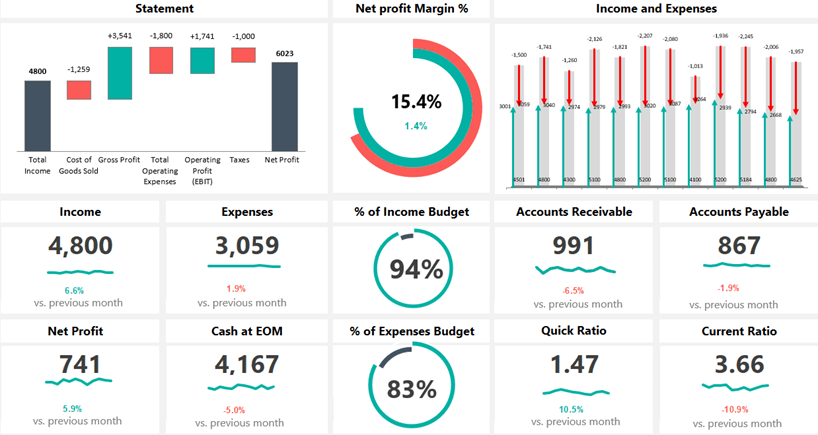
Step-by-Step Guide to Building a Real-Time Financial Dashboard in Excel
1. Prepare Your Data
a. Organize Data Sources
- Ensure your financial data (e.g., sales, expenses, invoices) is structured in tabular format with headers like Date, Category, Amount, and Transaction Type. Avoid blank rows/columns to prevent errors.
- Use Excel Tables (Ctrl+T) for dynamic data ranges. Tables auto-expand when new data is added, simplifying updates.
b. Import Data with Power Query
- Go to Data > Get Data > From File/Web/Database to connect to sources (e.g., CSV, SQL, or cloud storage). Power Query cleans and transforms data.
- Use Power Query to:
- Remove duplicates.
- Filter irrelevant rows (e.g., voided transactions).
- Split columns (e.g., separate Date into Month and Quarter).
- Merge tables (e.g., combine sales and expense data).
- Load transformed data into Excel’s Data Model for advanced modeling .
2. Build the Data Model with Power Pivot
a. Enable Power Pivot
- Activate Power Pivot via File > Options > Add-ins > COM Add-ins > Manage > Microsoft Power Pivot.
b. Create Relationships
- In Power Pivot’s Diagram View, link tables using common fields (e.g., Product ID in sales and inventory tables). Replace VLOOKUPs with relationships for faster calculations.
c. Write DAX Formulas
- Use Data Analysis Expressions (DAX) to create calculated metrics:
Total Sales = SUM(Sales[Revenue])YTD Sales = TOTALYTD(SUM(Sales[Revenue]), Dates[Date]).
- Leverage time intelligence functions (e.g.,
SAMEPERIODLASTYEAR()) for trend analysis.
3. Design the Dashboard with Pivot Tables & Charts
a. Create Summary Pivot Tables
- Insert PivotTables via Insert > PivotTable > Use Data Model.
- Drag fields:
- Rows: Month or Category.
- Values: Sum of Sales, Average Expenses.
- Customize calculations (e.g., show values as “% of Grand Total”).
b. Visualize Data with PivotCharts
- Select a PivotTable > PivotTable Analyze > PivotChart.
- Use Combo Charts to display trends (e.g., line chart for YTD growth, bar chart for monthly sales).
- Apply conditional formatting to highlight outliers (e.g., red for expenses exceeding budget).
c. Add Slicers & Timelines
- Insert Slicers (Insert > Slicer) for Category, Region, or Product to filter dashboards interactively.
- Add a Timeline (Insert > Timeline) for date-based filtering (e.g., quarterly trends).
4. Automate Real-Time Updates
a. Set Up Data Refresh
- Configure Power Query to refresh automatically:
- Go to Data > Queries & Connections > Right-click Query > Properties > Refresh every [X] minutes.
- Refresh PivotTables manually via PivotTable Analyze > Refresh or automate with VBA macros.
b. Publish to SharePoint or Power BI
- Save the dashboard to SharePoint or Power BI for team access. Use Microsoft Groups to share and collaborate in real time.
5. Optimize for Usability
- Label Elements Clearly: Rename PivotTables (e.g., “Sales Summary”) and charts for clarity.
- Protect Data: Use Review > Protect Sheet to prevent accidental edits.
- Test Interactivity: Ensure slicers and timelines sync across all visuals.
References for Further Learning
- Books:
- Dashboarding and Reporting with Power Pivot and Excel by Kasper de Jonge.
- Courses:
- CFI’s Excel Crash Course (corporatefinanceinstitute.com).
- LinkedIn Learning: Excel Power Query and Power Pivot for Beginners.
- Templates:
- Download the Financial Sample Workbook for Power BI (Microsoft Learn).
- Tools:
- Zebra BI for Office: Enhances Excel visualizations.
- From Microsoft:
Final Tip: Regularly audit your dashboard’s performance and update DAX formulas as business needs evolve. For advanced analytics, explore Power BI integration